Set a Component's behavior
The behavior says what the player can do with a Component. Every Component has one behavior, set with one of four buttons: None, Clickable, Draggable and Connectable.
Before you start: there is a Component on the scene (see Add a Component to the scene) and it is selected.
Find the behavior control
-
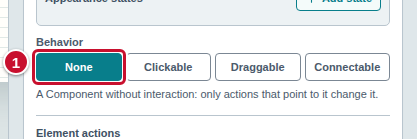
In the Inspector panel, under the appearance section, find the Behavior control. It has four buttons: None, Clickable, Draggable and Connectable. A new Component has None chosen (marker 1). Under the buttons, the editor describes the chosen behavior: “A Component without interaction: only actions that point to it change it.”
Make a Component clickable
-
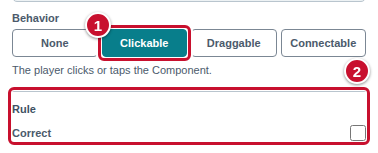
Click Clickable (marker 1). The description under the buttons says: “The player clicks or taps the Component.” Below it, the Rule section appears with the Correct check box (marker 2).
-
Tick the Correct box for the Components the player should click as the right answer. Leave it empty for the others. If no element is correct, the editor reports a problem and will not run the exercise.
Make a Component draggable
-
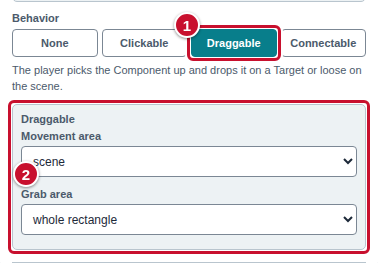
Click Draggable (marker 1). The description says: “The player picks the Component up and drops it on a Target or loose on the scene.” Under the control, a section with two options appears (marker 2): Movement area — whether the player may carry the element anywhere or only over the scene — and Grab area — whether the player grabs the element anywhere in its rectangle or only on the outline of the picture.
-
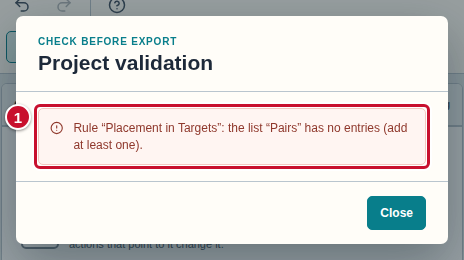
Look at the problem counter on the toolbar: after you choose this behavior, it shows one more problem. The editor sets the rule Placement in Targets for the exercise, and this rule needs at least one “Component — Target” pair. As long as there is none, you cannot run or export the exercise. When you click the counter, you see a message that the Pairs list has no entries (marker 1).
There are two ways out. Choose the one that fits your exercise.
The player drops elements in set places
You need a Target (a place where the player drops the Component) and a pair that connects it to the Component.
-
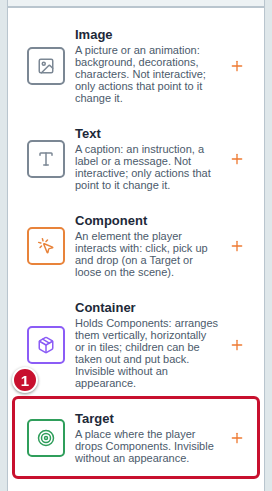
In the Components panel, click Target (marker 1). The Target appears on the scene and in the Scene elements list. Without an appearance, a Target is invisible to the player; in the Inspector panel, in the Appearance section, you can give it the appearance Image, Animation or Text.
-
On the toolbar, click the Exercise configuration icon (see Start a new exercise). The Exercise configuration window opens.
-
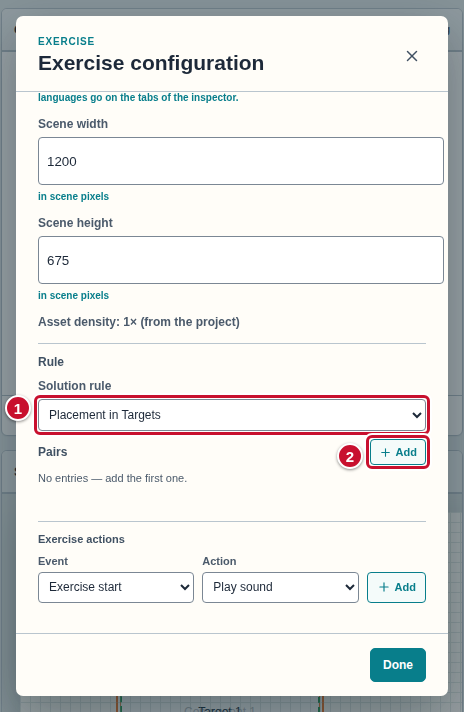
Scroll the window down to the Rule section. The Solution rule field has the value Placement in Targets (marker 1), and under it there is the Pairs list with the message “No entries — add the first one.” and the Add button (marker 2).
-
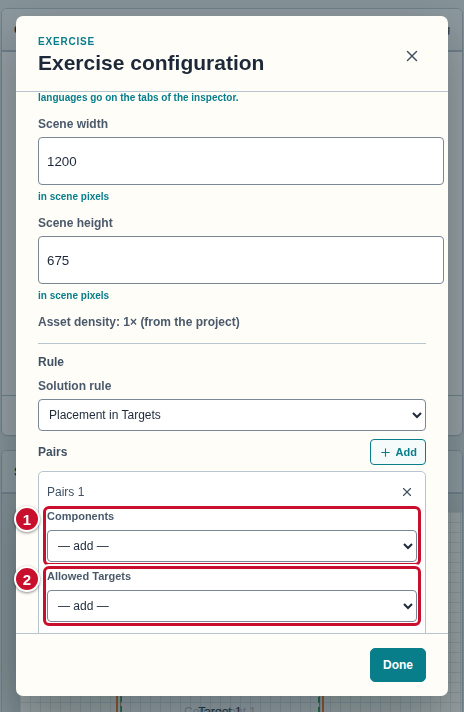
Click Add next to the Pairs list (the tooltip is “Add an entry”). The entry “Pairs 1” appears with two lists: Components (marker 1) and Allowed Targets (marker 2).
-
Under Components, open the “— add —” list and choose your Component.
-
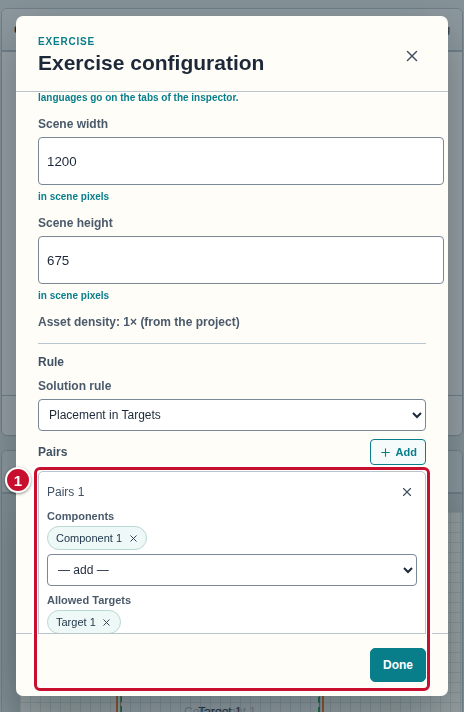
Under Allowed Targets, open the “— add —” list and choose the Target the player should drop it on. The chosen elements appear above the lists (marker 1).
-
Click Done. The message about the empty Pairs list disappears from the Project validation window.
The player only drags, with no check of the place
If the exercise does not need to check where the player dropped the element, change the Solution rule field in the Exercise configuration window from Placement in Targets to No evaluation. A pair is no longer needed, and the editor reports only other problems. Under it, the Completion field appears, with two options: when every draggable Component is in a Target and with the “Complete the exercise” action. Choose one of them. The description of the behavior says that the player may also drop the Component loose on the scene. With the rule Placement in Targets, the editor requires a Component — Target pair, and with No evaluation it does not require any Targets.
Make a Component connectable
-
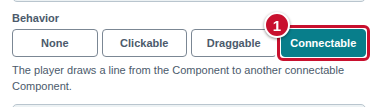
Click Connectable (marker 1). The description says: “The player draws a line from the Component to another connectable Component.” Below it, the Line anchor point section appears: the place the player draws the line from, and its reach. You also see the anchor point on the scene as a handle that you can drag.
-
Add a second Component and choose the behavior Connectable for it too. A pair can connect only two different Components, so you need at least two.
-
The exercise gets the rule Connecting pairs. Until you add the pairs of elements to connect, the problem counter on the toolbar shows a problem and you cannot run the exercise. Click the Exercise configuration icon to open the Exercise configuration window.
-
Scroll the window down to the Rule section.
-
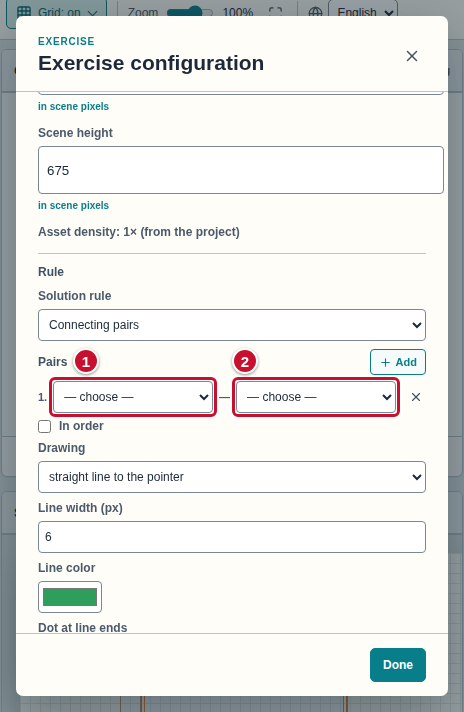
Click Add next to the Pairs list (the tooltip is “Add a pair”; an empty list says “No pairs — add the first one.”). A row appears with two “— choose —” lists (markers 1 and 2).
-
In both lists, choose one Component each — these are the two ends of a correct connection. When the row is full, the problem disappears from the counter.
Go back to the behavior “None”
Click None — the Component stops reacting to the player, and the options of the previous behavior disappear. Only actions that point to such a Component can change it now.
The warning about extra roles
When you open an exercise from a file in which one Component has several behaviors at once (for example clickable and draggable), the control shows one of them as chosen, and under it a warning appears that begins with the words “This Component also has:” and lists the other behaviors. Next to it is the Remove extra roles button.
- Select such a Component and read the warning under the Behavior control. It lists the behaviors that will be removed.
- Click Remove extra roles. The behavior that was chosen on the buttons stays; the others disappear, and the warning hides.
Not every such combination blocks the exercise: a clickable and draggable Component gives only a warning. A combination of Connectable with Draggable does block running and exporting, though — the problem counter on the toolbar then says that an element cannot be connectable and draggable at the same time.
Common mistakes
- A Component does nothing in the running exercise. It still has the behavior None. Choose one of the other three.
- A clickable Component, but the exercise does not run. No element has the Correct box ticked. Tick it for the correct elements (section Make a Component clickable).
- You want one element to be both clickable and draggable. The editor recommends one role per Component. Choose the behavior that matters most for the exercise.
- A draggable Component, the problem counter grows and the exercise cannot run. The editor set the rule Placement in Targets, which needs at least one Component — Target pair (the message says that the Pairs list has no entries). Add a Target and a pair, or switch the rule to No evaluation — see the sections The player drops elements in set places and The player only drags, with no check of the place.
- A connectable Component without pairs. Add the pairs in the Exercise configuration window (the Exercise configuration icon on the toolbar), as in the section Make a Component connectable.
- The window has no Pairs list, even though the Component is connectable. The Solution rule field was changed earlier, for example to No evaluation, and the editor does not switch it back. Choose Connecting pairs in it.