Add a Component to the scene
A Component is an element the player does something with: clicks it, drags it or connects it to another one. You set what exactly the player may do on the page Set a Component's behavior. Here the Component gets onto the scene and receives its appearance. How to select, copy and delete elements is described on the page Select, copy and delete elements.
Before you start: an exercise is open in the editor (see Start a new exercise).
Add a Component
-
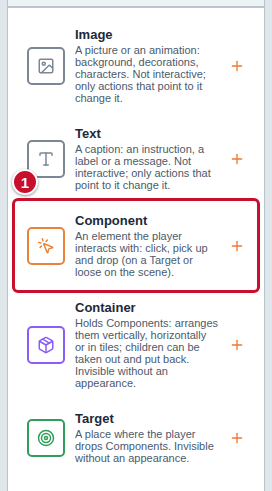
In the Components panel on the left, click Component (marker 1 in the screenshot).
-
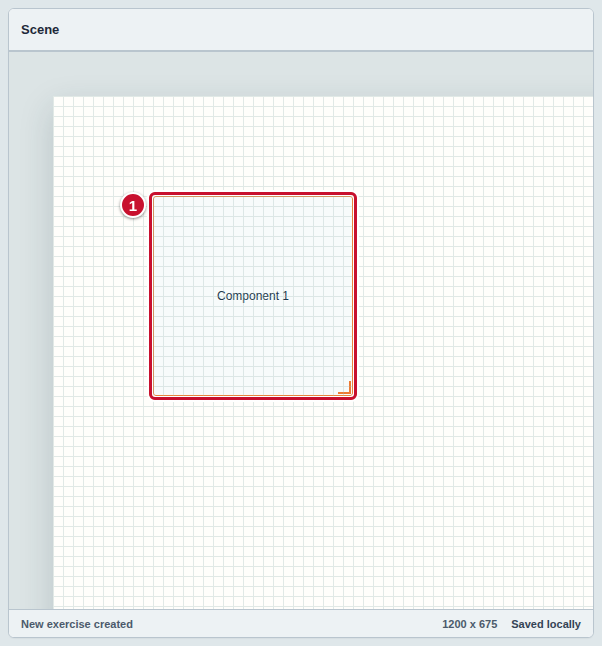
A new Component appears on the scene and is selected right away (marker 1). It is an empty rectangle with the name “Component 1”. The name is also in the Scene elements list.
Give the Component an appearance
A new Component starts with the appearance Image chosen, but without a file, so the problem counter on the toolbar shows an error. You can choose from three appearances: Image, Animation and Text. The simplest is a caption.
-
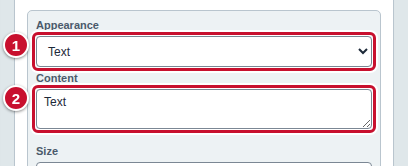
In the Inspector panel, in the Appearance section, open the first list (marker 1) and choose Text. The caption fields appear under the list.
-
In the Content field (marker 2), type the content, for example “Click me”. The caption appears on the scene at once.
Instead of a caption, you can leave Image and choose a file as on the page Add an Image to the scene.
Common mistakes
- A Component without an appearance. The problem counter shows an error and you cannot run the exercise until the Component has a picture or a caption. Follow the steps from the section Give the Component an appearance.
- A Component that “does nothing”. A new Component has the behavior None: the player cannot click it or drag it. You change that on the page Set a Component's behavior.
- Too many Components. Every click on Component in the Components panel adds a new element. You can delete the extra one as described on the page Select, copy and delete elements.
- You cannot see all the elements. New elements lie close to each other and cover each other. See Select, copy and delete elements.