Select, copy and delete elements
This page is about every element of the scene: an Image, a Text, a Component, a Container and a Target. You will learn how to choose the element you want to work on, make its copy, delete it and undo mistakes.
Before you start: there is at least one element on the scene (see Add an Image to the scene, Add a Text to the scene or Add a Component to the scene).
Select an element
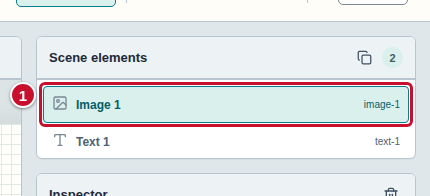
To change the settings of an element, select it first. A selected element has an orange frame on the scene, and its settings are shown in the Inspector panel.
-
Click the row of the element in the Scene elements list (marker 1). The row of the selected element is highlighted with a color.
-
You can also select elements by clicking them on the scene. When elements lie on top of each other, a click selects the one that is on top — then choose the right element from the list.
Copy an element
-
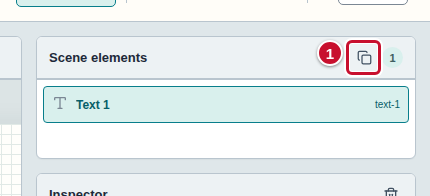
Select an element and click the Copy the selected element icon in the header of the Scene elements list (marker 1).
-
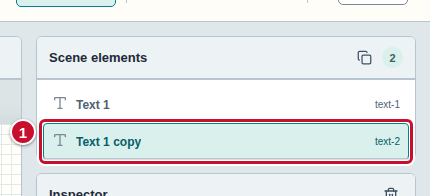
The list shows a copy with a name that ends with the word “copy” (marker 1). The copy is selected right away and has the same settings as the original, for example the same caption. The list has room for only a few rows, so when there are more elements, scroll it down to see the copy.
-
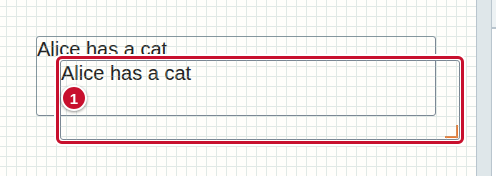
Look at the scene: the copy lies right next to the original, a little lower and more to the right (marker 1). Drag it with the mouse to where you want it.
Delete an element
-
Select an element and, in the header of the Inspector panel, click the trash can icon (marker 1). The tooltip of the icon is “Delete the selected element”. The element disappears from the scene and from the list; the editor does not ask for confirmation.

Undo a change
-
If you deleted an element by mistake, click the left arrow icon Undo the change on the toolbar (marker 1). The element comes back to the scene. The right arrow Redo the change repeats a change you have undone.

You undo other changes in the same way, for example adding an element or typing a caption.
Common mistakes
- Elements lie on top of each other. The first element of each kind (Image, Text, Component) appears in the same place on the scene, and every next one of the same kind is moved only a little down and to the right. A click on the scene selects the one that is on top, so choose elements from the Scene elements list, or move them apart: drag an element with the mouse or change its position in the Position and size section of the Inspector panel.
- Several clicks make several elements. Every click in the Components panel adds a new element. Select the extra one and delete it (section Delete an element).
- You deleted an element by mistake. Click Undo the change on the toolbar (section Undo a change).
- You cannot find the copy. The copy lies not far from the original and is selected: its name in the Scene elements list ends with the word “copy”. Select it in the list and drag it to where you want it.
- The copy icon is faded. Nothing is selected, so there is nothing to copy. Select an element (section Select an element).