Add a Text to the scene
A Text is a caption on the scene: an instruction for the player, a label or a message. The player does not click it or drag it.
Before you start: an exercise is open in the editor (see Start a new exercise).
Add a Text
-
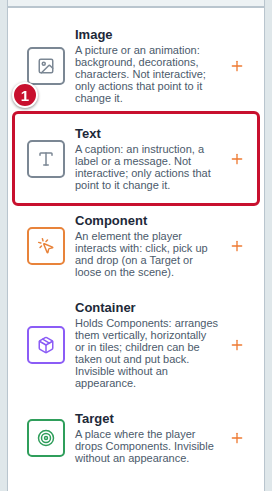
In the Components panel on the left, click Text (marker 1 in the screenshot).
-
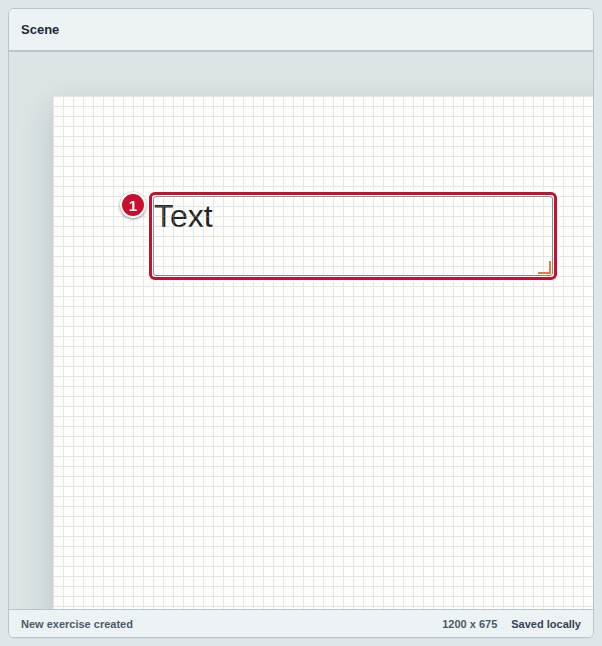
A new Text with the word “Text” appears on the scene (marker 1) and is selected right away. Its name, “Text 1”, is also in the Scene elements list.
Type the content of the caption
-
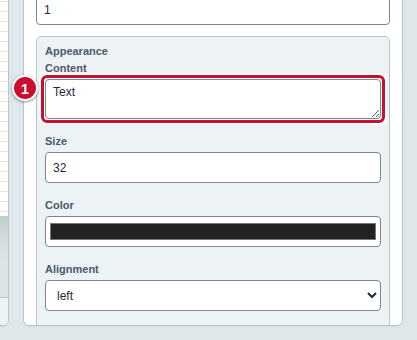
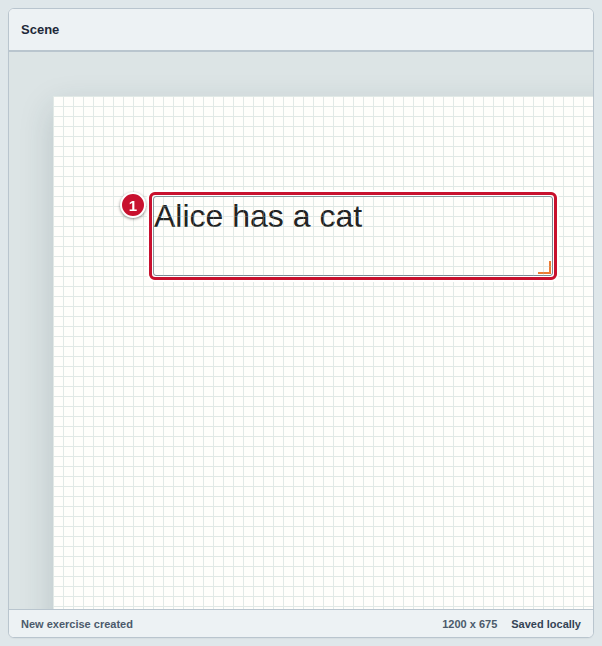
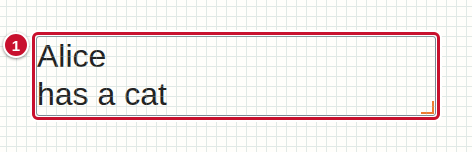
In the Inspector panel, in the Appearance section, click the Content field (marker 1) and type your own words, for example “Alice has a cat”. Replace the default word “Text” with yours, or delete it.
-
The caption on the scene changes at once, while you type (marker 1). You do not need to confirm anything.
When the exercise has more than one language, there are language tabs above the Content field, and you type the caption separately in each of them — see Make an exercise in several languages.
Start a new line and highlight words
-
In the Content field, put the cursor where the new line should begin and press the Enter key. The caption on the scene immediately moves to a new line (marker 1).
-
To make a word bold, type
<b>before it and</b>after it, for exampleThis is <b>important</b>. To make it italic, use<i>and</i>. You see the effect on the scene at once.
Change the size, color and alignment
-
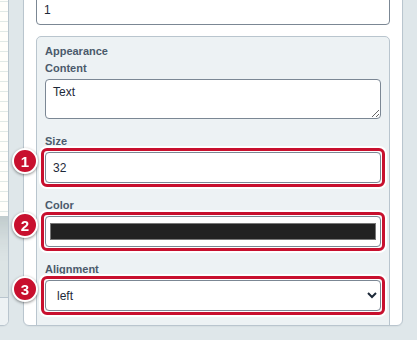
In the same Appearance section, set how the caption looks. Every change works on the scene at once:
- Size (marker 1) — type a number, for example 56; the bigger the number, the bigger the letters,
- Color (marker 2) — click the field and choose the color of the letters,
- Alignment (marker 3) — choose from the list: left, center or right.
Common mistakes
- The caption is cut off. A Text has a fixed area on the scene, and whatever does not fit in it is hidden. Make the Size smaller or make the area bigger: in the Position and size section of the Inspector panel, increase Width or Height.
- Empty content. A Text without content blocks running and exporting. The problem counter on the toolbar then shows the message “Element Text 1: the field “Content” is empty.”; type any caption (see Check the exercise before you run it).
- Strange
<and>characters in the caption. Only the codes<b>,<i>,<br>,<ul>and<li>work in the content. The editor reports any other one, for example<script>, as a problem and does not let you run the exercise. - The player cannot click the caption. A Text is only a caption. If the player should click or drag a caption, use a Component with the appearance “Text” — see Add a Component to the scene.