Add an image in language versions
A picture sometimes contains a caption, for example a board with a slogan in Polish. In an exercise in several languages, each language then needs its own file. An asset (a file in the Assets window) can be one of two kinds:
- common — one file for all languages. This is always the case when you add a file as usual (see Add an Image to the scene),
- language — a separate file for each language. An asset becomes a language asset when you add a file for a language other than the default one.
Before you start: the exercise has at least two languages (see Exercise languages), and there is an Image with a file on the scene. In the screenshots the exercise has three languages: Polish (default), English and German. For English we point to a banana instead of the apple only to make the difference visible; in a real exercise, choose the same picture with the caption in the other language.
Language keys under the asset card
-
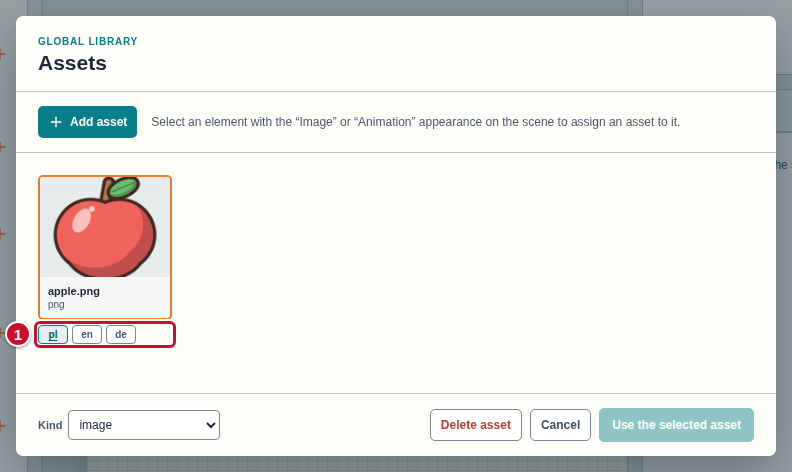
Open the Assets window: click the Asset library icon on the toolbar or the folder icon next to the Image in the inspector. Under the card of every asset there is a row of small buttons, one for each language of the exercise (marker 1). We call them language keys.
-
The key of the default language shows the file of the asset. The other keys are empty because the asset is common for now: all the languages use the same file. When you point at a key, a hint tells you what is going on with it.
Add a file for a second language
-
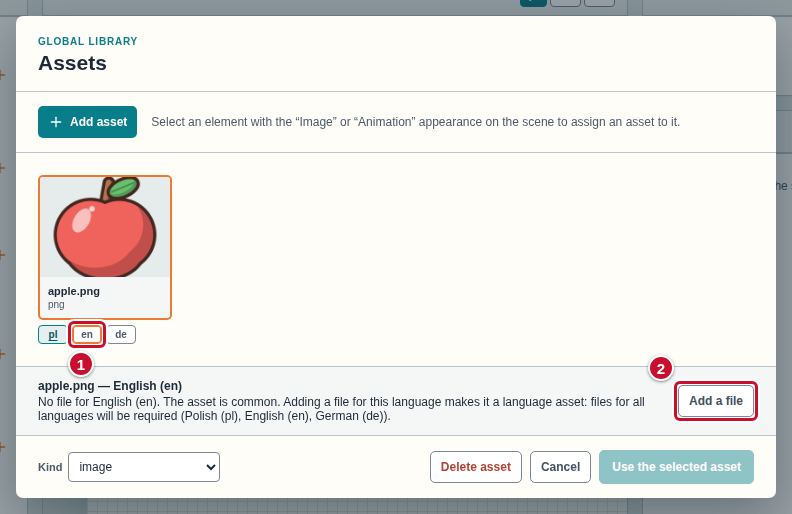
Click the key of the language you want to add a file for, for example en (marker 1). A panel appears above the footer of the window: the name of the asset and the language, and below it a note that the asset is common and that adding a file will make it a language asset, which needs files for all languages.
-
Click Add a file (marker 2) and choose the file on your computer.
-
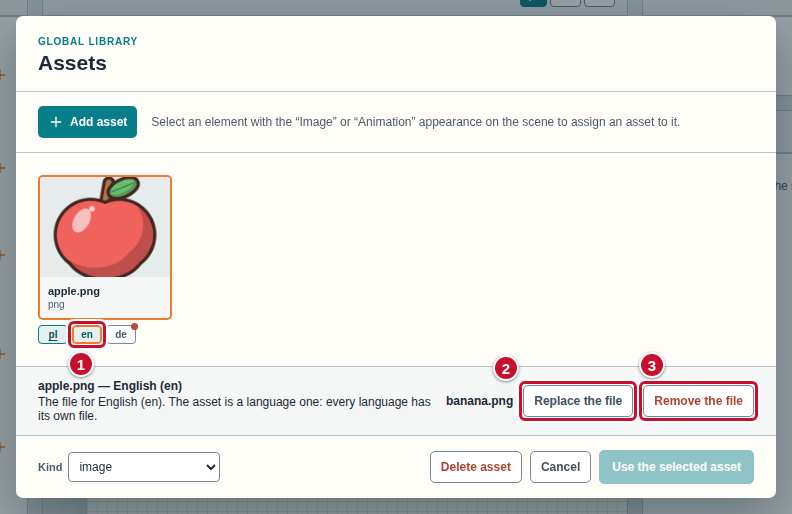
The panel shows the name of the added file and the buttons Replace the file (marker 2) and Remove the file (marker 3). The en key (marker 1) now has a file, and the asset is a language one: every language has its own file.
Fill in the other languages
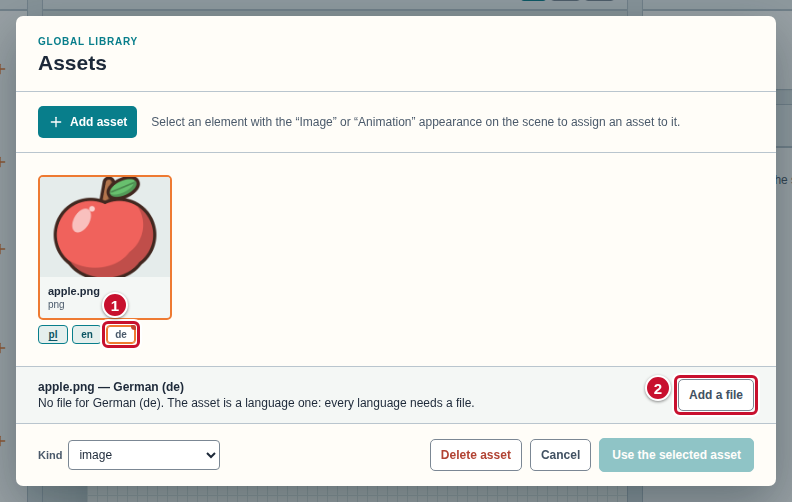
A language asset must have a file in every language of the exercise. When you add a file for the first language other than the default one, the remaining languages get a red dot on their keys: the file is missing there.
-
Click the key of a language with a red dot, for example de (marker 1). The panel says that the file is missing and that every language must have a file.
-
Click Add a file (marker 2) and choose the file. The dot disappears.
-
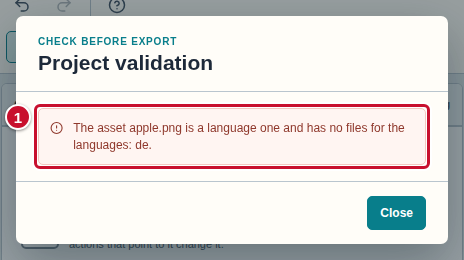
If you forget a language and the asset is used on the scene, the editor does not let you run or export the exercise. Open the Project validation window (the problem counter on the toolbar). A row says that the asset is a language one and has no files for the listed languages (marker 1). Click it: the window closes and the library opens on this asset, on the key of the missing language. Add the file as in step 2.
See the file in the chosen language
-
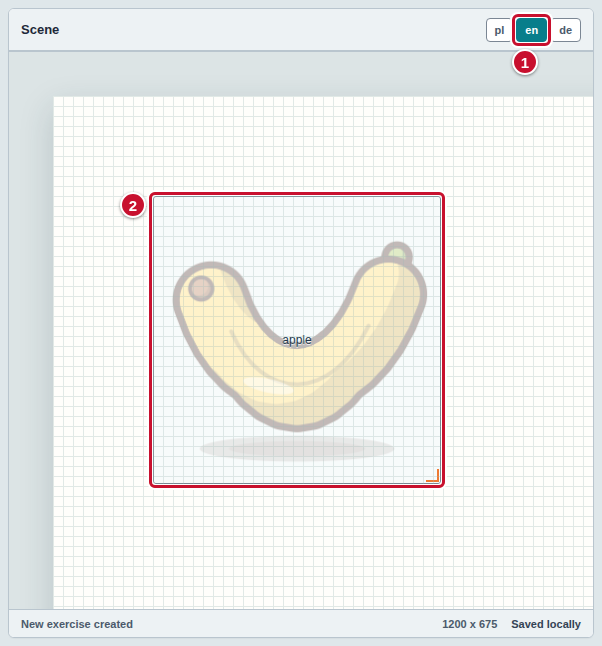
On the bar of the Scene panel, click a language switch, for example en (marker 1). The Image on the scene (marker 2) shows the file of that language. In the default language you see the file of the default language.
-
Click Run. The exercise runs in the language chosen on the stage bar and shows the file of that language. More about running: Make an exercise in several languages.
Replace or remove the file of a language
- Click the key of a language that has a file, and in the panel click Replace the file or Remove the file.
- You cannot remove the file of the default language as long as the asset has files in other languages. The Remove the file button is then faded, and its hint says: “First remove the files of the other languages or change the default language.”
- When only one file is left after removing, the asset is common again with that file. The Remove the file button is then faded, and its hint says: “This is the only file of the asset — remove the whole asset with “Remove asset”.” You remove the whole asset with the Delete asset button in the lower part of the window.
Change the default language or remove a language
-
Changing the default language (the Exercise configuration window, the Default language list) does not move anything: every language keeps its file.
-
Removing a language also removes its files in language assets. The editor asks for confirmation and says how many files in how many assets will disappear (marker 1 is the answer Yes, marker 2 — No).
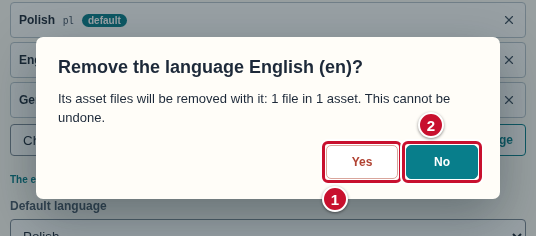
If only one file is left in an asset after the removal, the asset is common again. The file of a common asset is never removed together with a language.
Common mistakes
- There are no language keys under the card. The keys appear only when the exercise has at least two languages. Add a language in the Exercise configuration window.
- I added a file for one language and suddenly there is an error. An asset with files in several languages is a language asset and needs a file in every language of the exercise. Add the missing files (section Fill in the other languages).
- An asset I do not use does not block the exercise. A gap in an asset that no element uses shows only as a red dot on the card. The error in the Project validation window concerns the assets used on the scene.
- A file of the wrong kind. A file that is not a picture (for example a sound) in the slot of a picture is an error (“is of another kind than the asset”). Choose a file of the same kind as the asset.
- Different proportions of the picture. When the file of a language has different proportions than the file of the default language, the editor shows a warning (it does not block the exercise): the picture may look different on the scene. It is best to prepare the files with the same dimensions.
- Too many files. Saving a ZIP and Run refuse when the exercise package would have more than 500 files (the files of all languages add up). Remove the assets you do not use or the files of languages.
- A language removed together with its files. The files of the removed language disappear with it and cannot be brought back — do not confirm the removal if you have no copy.