Make an exercise in several languages
The same exercise can have captions in Polish, English and other languages. A player sees it in one language, and you choose the language in which you run it to check it. This page leads from adding a language to running the exercise in that language.
Before you start: an exercise is open in the editor (see Start a new exercise). Pictures in several languages (for example a board with a caption in Polish and in English) are described on a separate page, Add an image in language versions.
Add a second language
-
Open the Exercise configuration window and add a language, for example English, as described in the section Exercise languages.
-
Click Done.
-
Add a Text to the scene if there is none yet (see Add a Text to the scene).
-
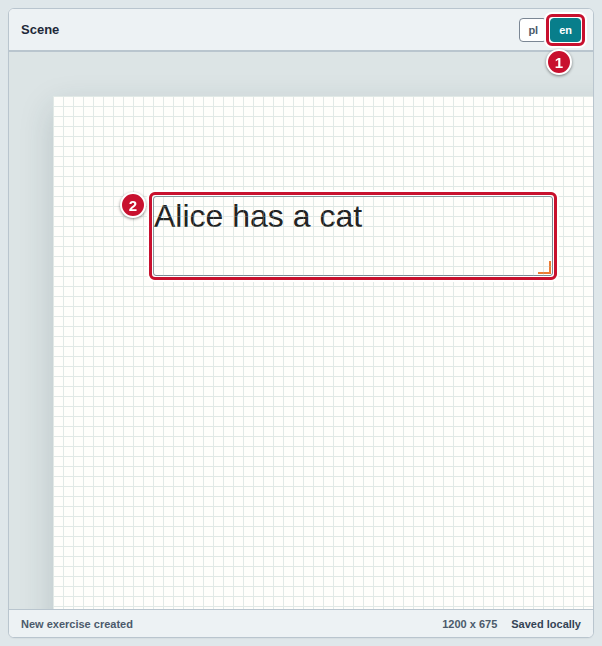
Because the exercise now has more than one language, the bar of the Scene panel shows language switches (marker 1).

Type the text in the second language
-
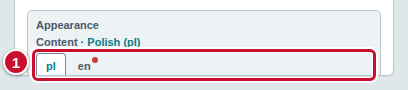
Select the Text on the scene. In the Inspector panel, in the Appearance section, there are language tabs above the Content field (marker 1): one for each language of the exercise (pl and en in the screenshot). The label next to the field says which language you are writing in. A red dot on a tab means that the text is missing in that language.
-
On the tab of the default language (pl), type the text in that language, for example “Ala ma kota”.
-
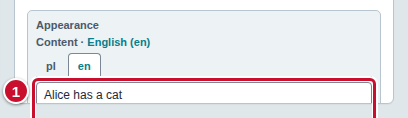
Click the tab of the second language (en). The field is empty, and the grey text in it is the text from the default language — only a hint that you do not need to copy.
-
Type the text in the second language (marker 1), for example “Alice has a cat”. The red dot on the en tab disappears.
Every text in the exercise — also in other elements, for example in a Component with the appearance “Text” — has the same tabs, and you need to type it in every language of the exercise.
Texts in appearance states
An element can have appearance states (the Appearance states section of the inspector), for example a different caption after a correct answer. The text in a state has language tabs too:
- In the Appearance states section, click Add state. A new state appears with the State name field and its own Content field.
- The text field of the state has the same language tabs as the base text. An empty field means “no change” — the element keeps its base caption.
- If you type the text of a state in one language, type it in the others too: red dots then appear on the tabs, and the validation window reports what is missing.
Check the text on the scene in the chosen language
-
On the bar of the Scene panel, click a language switch, for example en (marker 1). The hint on the switch says that it shows the scene and runs the exercise in that language.
-
The Text on the scene (marker 2) now shows the text in the chosen language.
The scene switches and the tabs in the inspector work independently: a switch changes only what you see on the scene, and a tab changes which language you are typing. When the chosen language has no text, the scene shows the text of the default language in that place.
Find missing translations
-
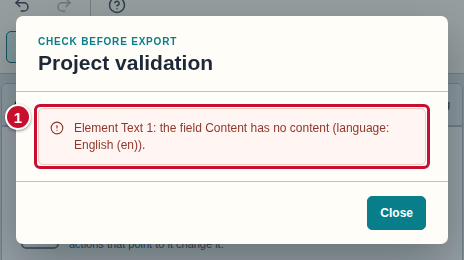
When a text is missing in some language, the problem counter on the toolbar is red and does not let you run the exercise. Click it to open the Project validation window.
-
Every missing text is a separate row with the name of the element, the field and the language (marker 1 in the screenshot), for example “Element Text 1: the field Content has no content (language: English (en)).”
-
Click the row. The window closes, the editor selects the element and opens the tab of the missing language in the inspector.
-
Type the text. When you have fixed all the gaps, the counter shows 0 (see Check the exercise before you run it).
Run the exercise in the chosen language
-
On the bar of the Scene panel, click the switch of the language in which you want to see the exercise (marker 1).
-
On the toolbar, click Run (marker 2).

-
In the new tab, GS Engine shows the exercise in the chosen language: the texts and, if you added language versions of images, the files of that language. To see the exercise in another language, go back to the editor tab, click another switch and click Run again.
Common mistakes
- The scene looks fine, but the exercise cannot be run. In the missing place the scene shows the text of the default language, so a gap is easy to miss. Open the Project validation window and fill in the tabs with a red dot (section Find missing translations).
- I am typing in the wrong language. Check the label next to the Content field (for example “Polish (pl)”) and the selected tab. The language switch on the scene does not change it.
- The exercise started in a different language than I wanted. The exercise starts in the language chosen on the stage bar, not in the language of the selected tab in the inspector. Click the right switch and run it again.
- There are no language switches. They appear only when the exercise has at least two languages. Add a language in the Exercise configuration window.
- After removing a language, its texts disappeared. This is intended and cannot be undone; the editor asks for confirmation (see Exercise languages).
- The editor language is not the exercise language. The switch with the globe icon on the toolbar changes only the captions of the editor.