Save and export your exercise
You can keep an exercise in three ways: in the browser (the editor does this by itself), in a ZIP file with all your work, and in a projekt.json file, which is the description of the exercise for the engine. This page tells you when to use which.
Before you start: an exercise with at least one element on the scene is open in the editor.
Saving in the browser
The editor saves the exercise in this browser by itself, a fraction of a second after every change. When you close the editor and open it again, it restores your last work (the message “Local save restored” is then at the bottom of the scene).
-
To save at once, click the floppy disk icon Save the project in the browser (marker 1).

-
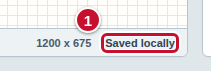
Look at the status bar under the scene. On its right side there is the message “Saved locally” (marker 1) — it means the changes are already saved. The message “Local changes” means the last changes are not saved yet — after a fraction of a second the editor saves them by itself.
This kind of saving exists only on this computer and in this browser. If you clear the browser data or open the editor on another computer, the exercise will not be there. That is why you should also save important work as a ZIP.
Save the exercise as a ZIP
-
Click the down arrow icon Save the exercise as a ZIP (download) (marker 1).

-
The browser saves the ZIP file in your downloads folder (or asks where to save it — this depends on the browser settings). The editor confirms with the message “Exercise ZIP downloaded” at the bottom of the scene. The file name comes from the name of the exercise, for example fruit-in-a-basket.zip.
The ZIP file contains all your work together with the pictures, so it is the best backup and the best way to move the exercise to another computer. After you save a ZIP (or a projekt.json file), the editor stops asking about unsaved work when you start a new exercise.
A ZIP file is saved even when the exercise has problems; the editor then shows “ZIP downloaded (without projekt.json — fix the validation errors)”. You can open such a ZIP and keep fixing it, but it is not ready to run yet.
An exercise in several languages in a ZIP file
The ZIP file contains all the languages of the exercise: the texts in every language and the files of all the language versions of images (see Add an image in language versions). You save and open it exactly like an exercise in one language:
- Click the Save the exercise as a ZIP (download) icon (as in the previous section).
- Later, open the file with the Open an exercise (ZIP) icon. The exercise comes back with the same list of languages, the same default language, and the texts and files of every language; the stage bar has the language switches again.
An exercise package can have at most 500 files; the files of all assets and all their language versions count toward the limit. When there are more, the editor neither saves the ZIP nor runs the exercise: the message “The ZIP could not be saved” (when running: “The exercise could not be run”) is at the bottom of the scene, and the message says that the package would have too many files and gives their number and the limit. Remove the assets you do not use (the Assets window, the Delete asset button) or the files of the languages you do not need.
Export the projekt.json file
The projekt.json file is only the description of the exercise for the engine, without pictures. You need it when the exercise is to be played by the engine outside the editor. For ordinary saving of your work, use a ZIP.
-
Click the Export projekt.json for the engine icon (marker 1). The browser saves the projekt.json file, and the editor shows “projekt.json downloaded”.

-
If the icon is faded (pale, as if switched off) and, when you point at it with the mouse, the tooltip “Export blocked by validation” appears, the exercise has problems (marker 2 in the screenshot shows their counter). Fix them as described on the page Run and check your exercise.

Open the exercise again
-
On the toolbar, click the folder icon Open an exercise (ZIP) (marker 1) and choose the saved ZIP file.

-
The exercise loads into the editor and replaces the one that was open. If the current exercise has not been saved to a file, the editor first asks Unsaved work; choose Keep working to save it first (see Start again).
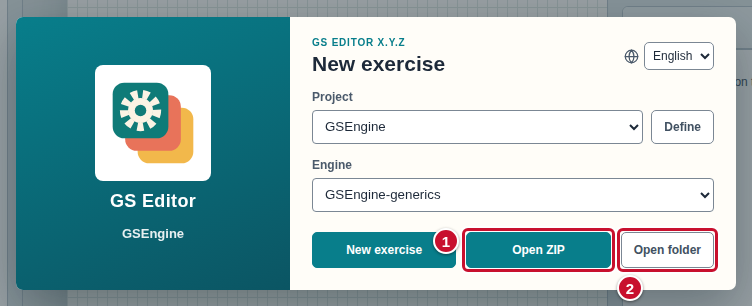
The start window has two buttons for opening (markers 1 and 2): Open ZIP and Open folder. The second one opens a folder that holds the projekt.json file together with the pictures.
Common mistakes
- “I saved it”, but the editor still asks about unsaved work. Saving in the browser and the Save the project in the browser icon do not count as a file. Save the exercise as a ZIP.
- The projekt.json export icon is faded. When you point at it, it shows “Export blocked by validation”: the exercise has problems. Open the list of problems (the counter on the toolbar) and fix them.
- The file is called exercise.zip. The exercise has the default name. Change it in the Exercise configuration window (see Start a new exercise) and save the ZIP again.
- The ZIP is not saved and the message is “The ZIP could not be saved”. With many languages and many images, the package may have exceeded 500 files — see An exercise in several languages in a ZIP file.
- The data disappeared after clearing the browser. Saving in the browser does not survive clearing the data. Restore the exercise from the last ZIP file.